
Last Updated on March 2, 2026
Now that I’ve integrated Microsoft Word locally with several local LLM servers, it’s time to put its capabilities to the test. I’ll be benchmarking Microsoft Copilot in Word with using LM Studio in Word. In such integration, my local Word Add-in (GPTLocalhost) acts as a bridge between Microsoft Word and LM Studio. To evaluate its effectiveness, I’ll review the key features outlined in Holger’s story “Using Microsoft Copilot in Word”. Additionally, I’ll reflect on the benefits and drawbacks of my local first approach. In fact, I’m writing this story in Word right now with the assistance of the llama-3.2–3b-instruct model loaded in LM Studio.
📖 Part of the Private AI Writing Workflows: A Complete Guide
This post is a deep-dive cluster page focusing on various use cases enabled by GPTLocalhost for Microsoft Word. Visit the pillar page to master the basic functions, explore advanced editing and content refinement, and dive into power user experiments—all designed to keep your writing process efficient and private.
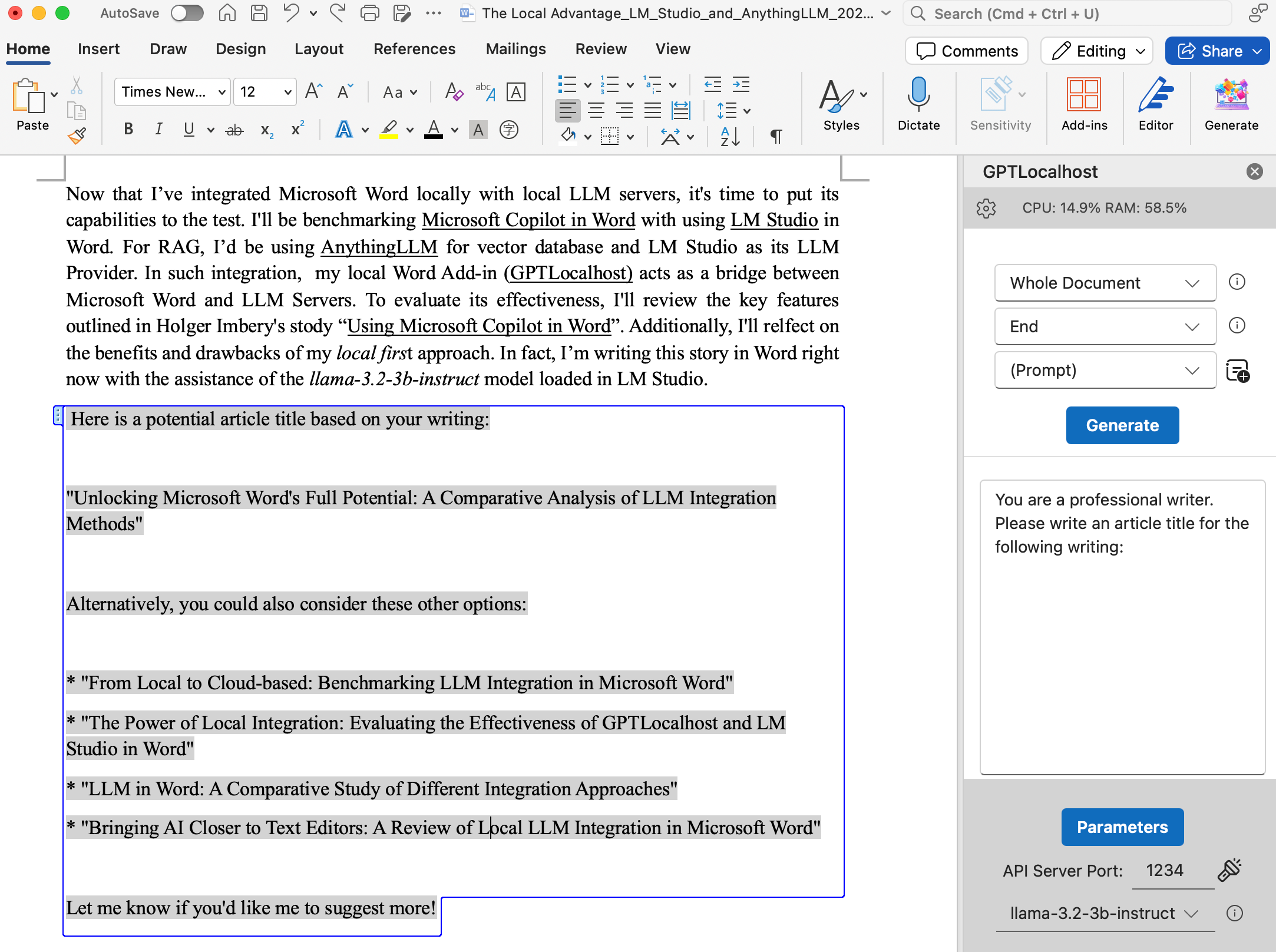
There are three categories of use cases in Holger’s post:
(1) Draft a document
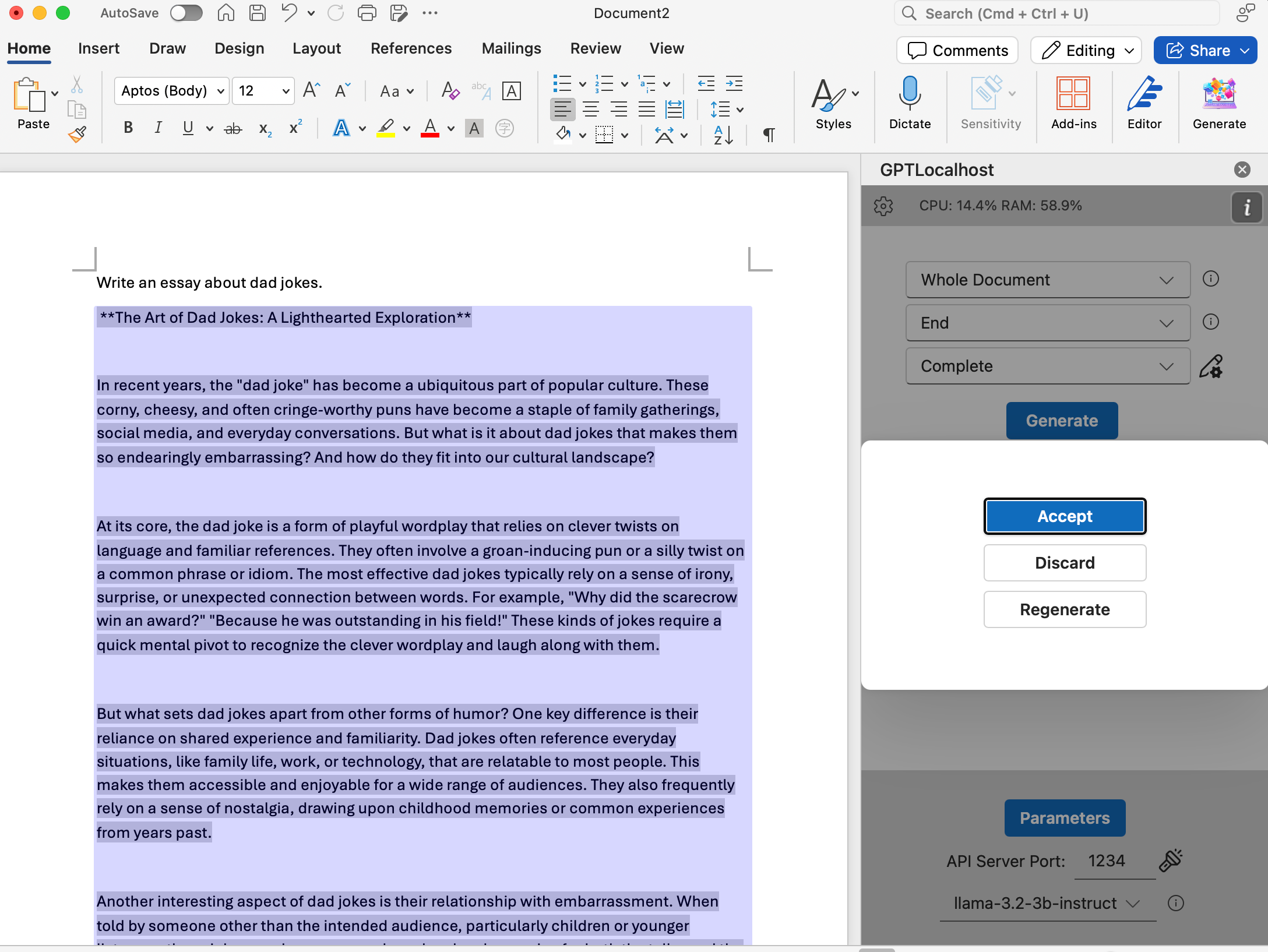
The first prompt in the post is “Write an essay about dad jokes” and I use the same prompt for a test. The following is the coherent output generated by LM Studio and shown in Microsoft Word. While subjective evaluation may be necessary depending on the context, the point here is to demonstrate that the llama-3.2–3b-instruct model is effective and can be integrated with Microsoft Word. Also, you’d have the flexibilities to experiment with different models or domain-specific models to optimize your writing.
The second example in the post is related to RAG (Retrieval-Augmented Generation):
You can reference up to three of your files to help guide Copilot’s drafting. Use the “Reference your content” button or type “/” followed by the file name in the compose box. This feature only accesses the files you select, ensuring your data remains private.
In general, such RAG features can be achieved by combining LLM Server and Vector Database. I plan to demonstrate this further by using AnythingLLM for vector database and LM Studio as its LLM provider in a future post. The main advantage in this local approach is that you can reference as many files as your hardware allows.
(2) Transform your text
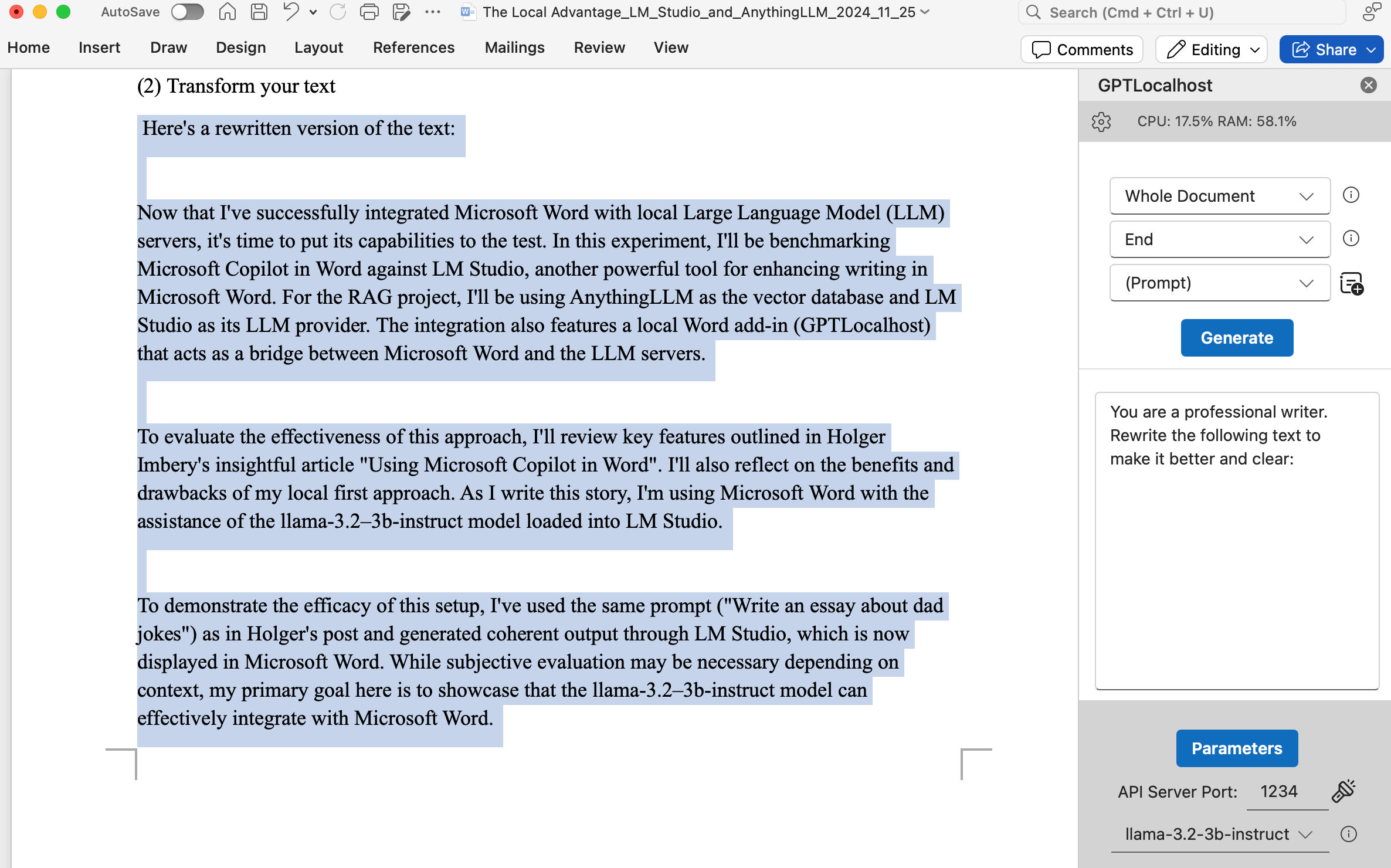
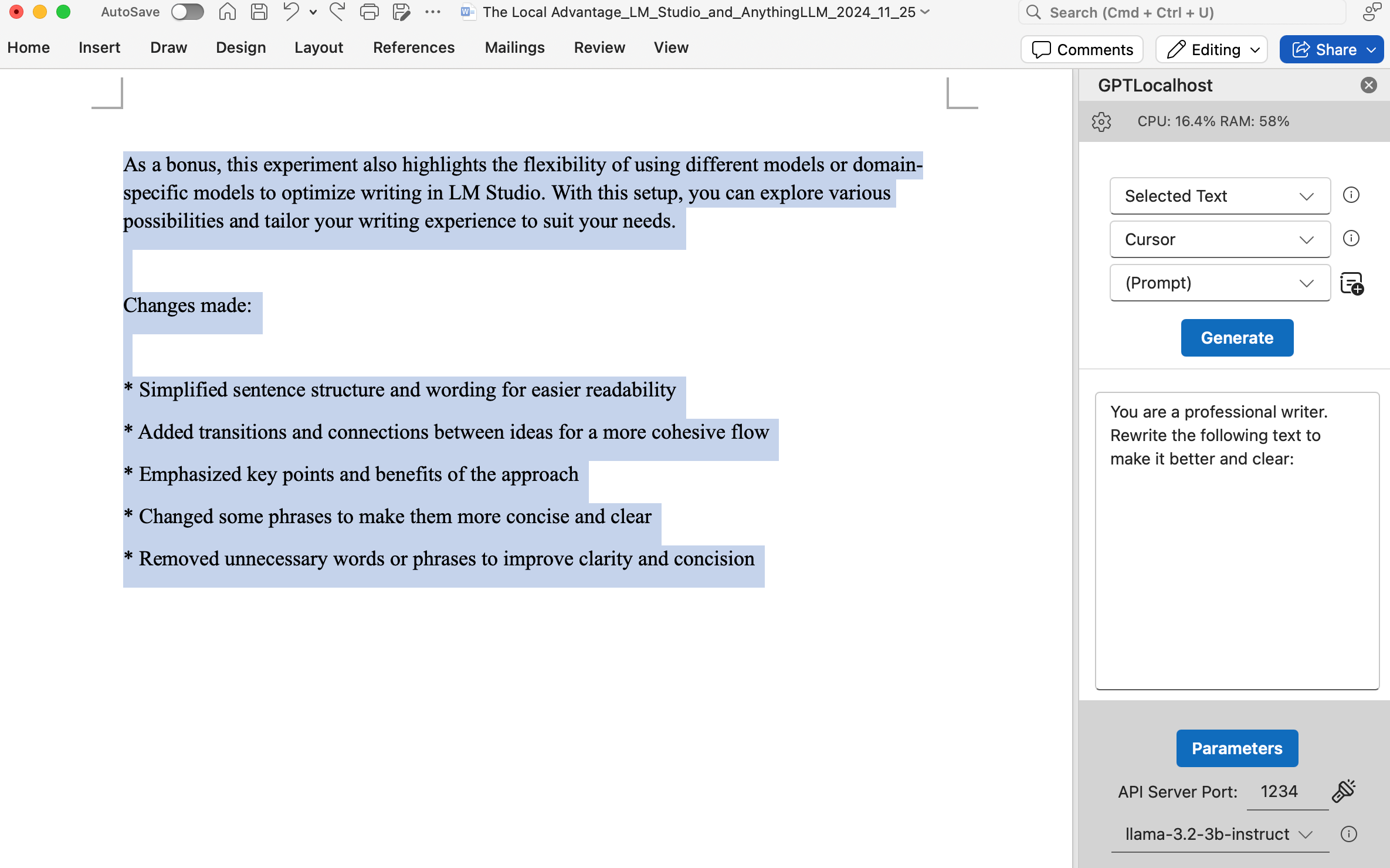
For this use case, the example in Holger’s post is rewriting and editing. In terms of rewriting, I’ll use the text written in this story so far as the input and ask LM Studio to rewrite. The instruction given and its results are shown as follows.
Another example in Holger’s post is about converting text into a table. Unfortunately, this feature is not currently supported by the llama-3.2–3b-instruct model, which requires specific formatting and data structures. This limitation means that language models based solely on text cannot automatically convert text into tables without first being fine-tuned with training data tailored to Word document formats. That being said, there’s potential for enhancement in the future if the use case aligns with what users want.
(3) Chat about your document
For this use case, the example in the post is “Summarizing this doc”. Summarizing a document is a straightforward task for the llama-3.2–3b-instruct model because it can follow instructions. Summarization is a common use case, which is why my local Word Add-in provides “Summarize” as one of its default tasks. The “Summarize” task is defined as “You are a professional writer. Please summarize the following text:”. In the local Word Add-in, two other default tasks are also available: “Complete” for continuing writing and “Rewrite” for rephrasing the text. If you need a custom instruction, you can use “(Prompt)” to define it yourself and select the document in its entirety as input range by setting “Whole Document”. For demonstration purposes, I generated an article comparing the pros and cons of local LLMs versus cloud-based LLMs. Then I instructed the model to summarize the article, which is presented below.
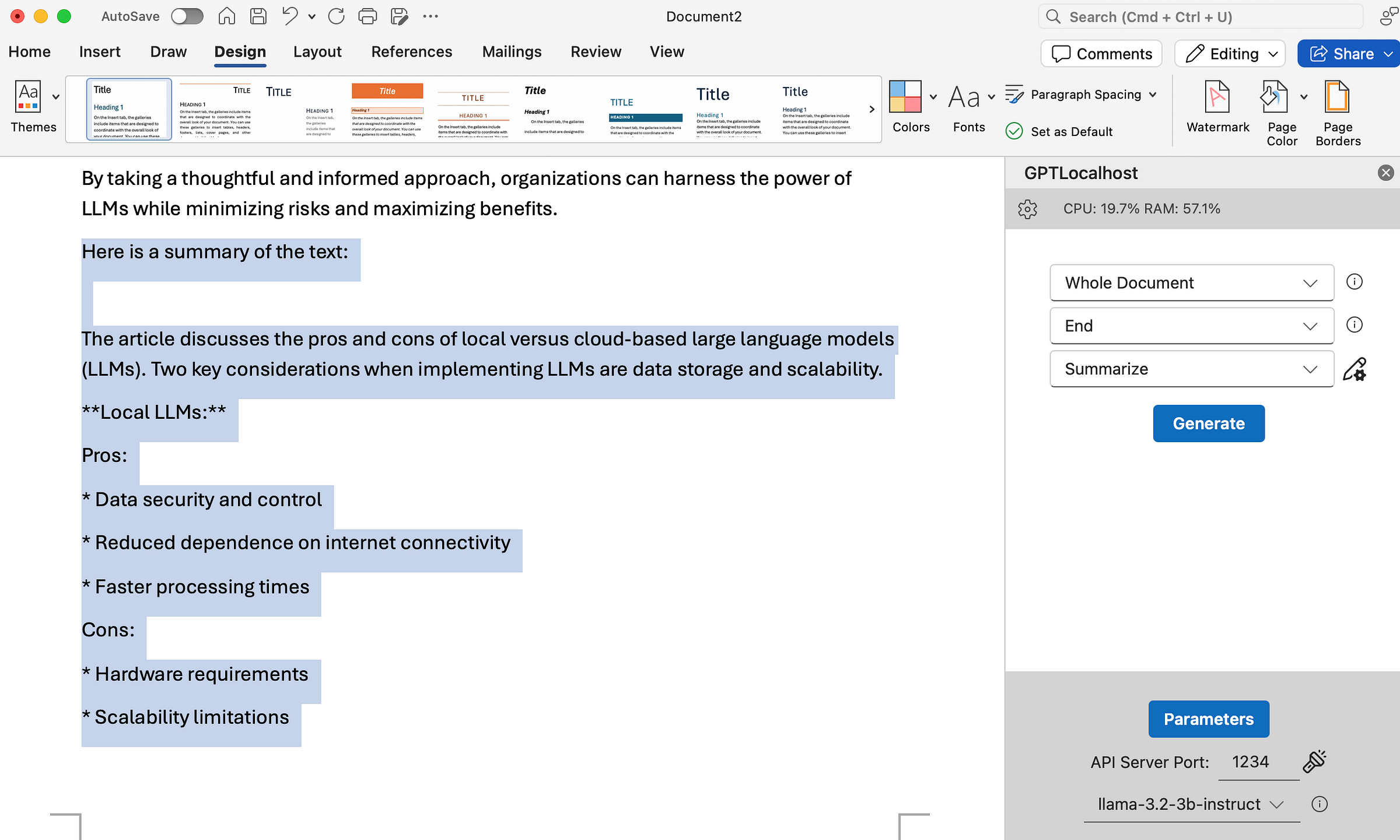
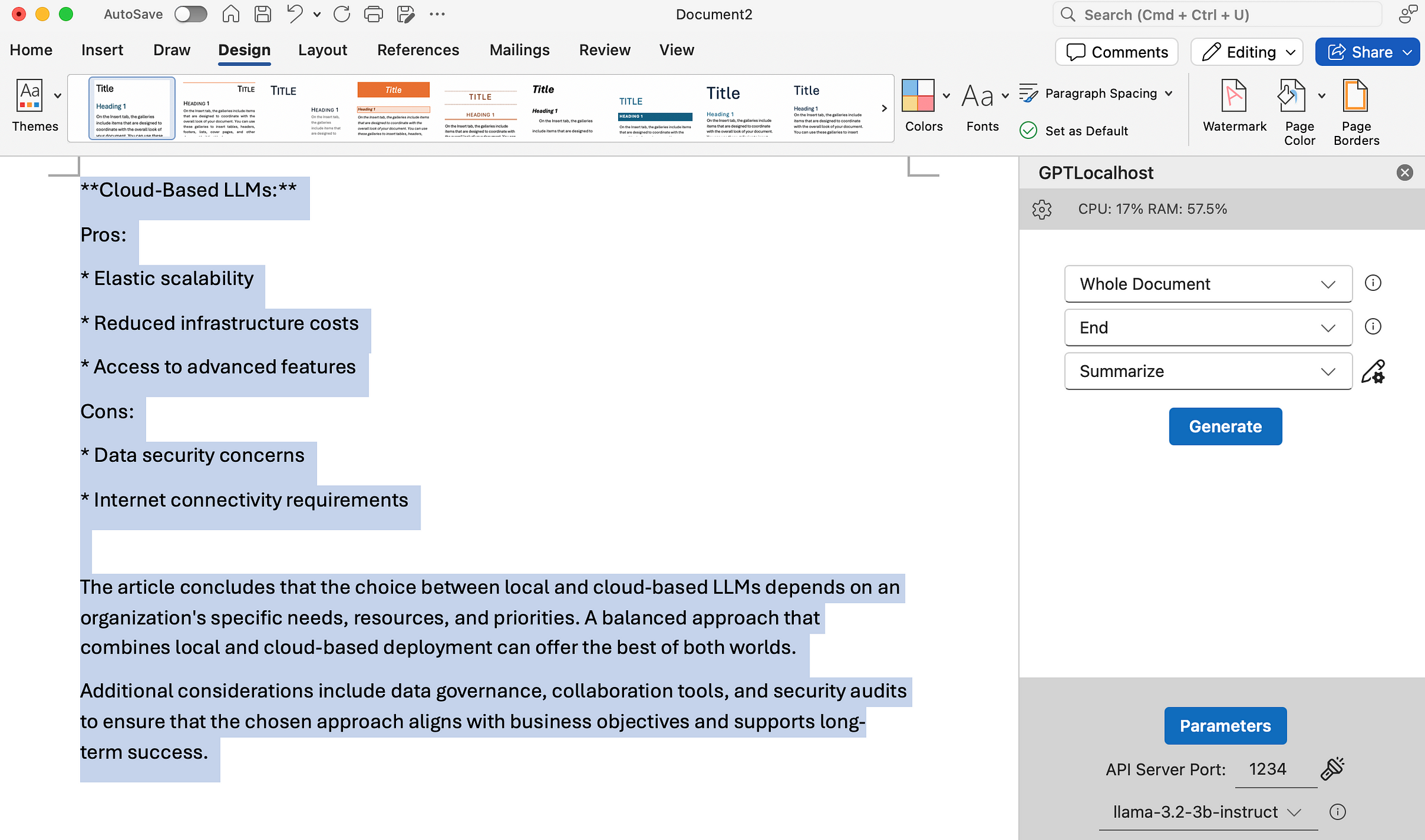
These screenshots provide an additional layer of understanding of the key themes and implications of this story. If you want to learn more about how GPT-Localhost works, check out our demo page and give it a try.
Take Control of Your Writing Environment
Modern professional writing requires both the intelligence of AI and the security of a private office. By deploying a local AI stack, you ensure that your most sensitive drafts, proprietary research, and creative ideas remain exactly where they belong: under your total control.
Ready to build your secure powerhouse? Download GPTLocalhost and experience the full capabilities of local AI integration firsthand. Start your journey toward a professional-grade drafting environment today—you can begin with the free tier, no credit card required.