
Last Updated on March 5, 2026
In 2026, one of the greatest threats to AI privacy isn’t the LLM itself—it’s the browser you use to access it. For example, security researchers identified 16 malicious browser extensions for Google Chrome and Microsoft Edge that intercept ChatGPT session tokens, enabling attackers to hijack user accounts and access conversation history and related metadata. This form of ChatGPT leakage occurs entirely outside OpenAI’s infrastructure and control. While OpenAI secures the destination, these “middleman” attacks compromise the journey. In such a case, your browser is the weakest link. Because malicious extensions operate within the browser’s high-privilege environment, they see your data before it is ever encrypted and sent to the cloud.
📖 Part of the Hybrid AI Strategy Guide: This post is a deep-dive cluster page within our Hybrid AI Integration series—your definitive roadmap for bridging high-performance cloud intelligence with total local data control.
The Groq Advantage: Privacy by Default
How to Stop the ChatGPT Leak Permanently
To permanently stop the ChatGPT leak, you need to look at how you use the tool. A recent study on “What people use ChatGPT for” reveals that writing and how-to queries dominate usage at 28.1%, as shown below.
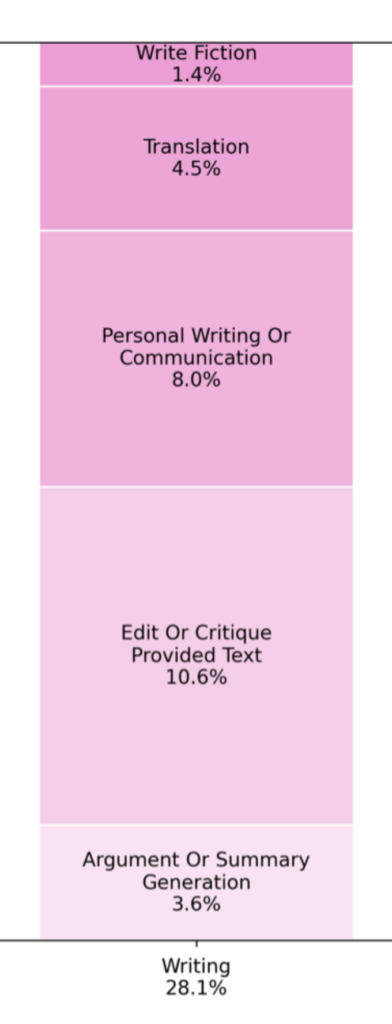
If writing is your primary use case and you use Microsoft Word, the most effective way to secure your data is to stop the “copy-paste” cycle and remove the browser from your workflow entirely. By calling OpenAI APIs directly within Word, you bypass the browser’s vulnerabilities and eliminate the risk of extension-based attacks.
Demo: Calling the OpenAI API Directly in Word
This demo showcases how to integrate OpenAI models, like GPT-3.5-Turbo, directly into Microsoft Word via a secure API connection. Unlike standard browser-based chats, GPTLocalhost includes a built-in local redaction feature. This allows you to scrub PII (Personally Identifiable Information) on your own hardware before the request is sent. This “Redact-First” workflow provides a critical layer of privacy that simply isn’t possible when using ChatGPT in a vulnerable browser environment.
1. Establish a Direct, Encrypted Tunnel
When you use GPTLocalhost, as a local Word Add-in, to bridge Word and OpenAI, your data travels through a direct, encrypted API call. There are no background scripts watching your tabs and no third-party extensions siphoning your text.
2. Implement Local Redaction
To truly stop the ChatGPT leak, you can further ensure that sensitive information never leaves your machine in the first place. GPTLocalhost allows for Local Redaction, a function where PII (Personally Identifiable Information) is scrubbed on your device before the API call is made.
- Local Scrubbing: Your machine replaces names, emails, and credit card numbers with placeholders.
- Secure Processing: Only the “clean” text reaches OpenAI’s servers.
- In-Doc Reconstruction: The AI’s response is merged back into your document locally.
The Strategy: Transitioning to Secure AI
Moving from a vulnerable browser tab to a secure Word integration is a three-step process:
- Use Direct APIs: Switch to using your own OpenAI API keys (or Groq for high-speed, free-tier access).
- Use a LLM proxy: Use LiteLLM to configure your cloud models and API keys locally. This ensures Zero-Party Key Handling, where your credentials stay on your machine and are never shared with third parties or the local Word Add-in.
- Install GPTLocalhost: Use the local Word Add-in to connect your API keys to Microsoft Word for a native, leak-proof writing experience.
By adopting a direct API strategy, you aren’t just gaining speed—you’re securing your intellectual property against the most common AI data breaches of 2026.
Hybrid in Action: The Best of Both Worlds
The Hybrid AI Strategy optimizes your workflow by treating cloud and local models as interchangeable utilities routed based on privacy, cost, and complexity. Calling OpenAI API directly from Microsoft Word allows you to bypass browsers and their potential security risks entirely. By using an LLM proxy as a central controller, you turn Microsoft Word into a powerhouse no longer limited by a single provider’s subscription or data policy, providing you with three key advantages:
- Zero-Cost Power: Leverage the “free lunch” of the Mistral API for complex reasoning and long-context analysis without the subscription fee.
- Total Data Ownership: By redacting data locally before it hits the proxy, you use the cloud as a “blind” processing engine. The cloud handles the logic, but your sensitive secrets never leave your hardware.
- Future-Proof Flexibility: Unlike the rigid walls of Copilot, you can swap cloud and local models easily, ensuring you always have the best tool for the specific task at hand.
🚀 Ready to go further?
- Private AI Writing Workflows: Put your local setup into action with a growing collection of real-world use cases powered by the GPTLocalhost. Learn to manage your workflow with features for offline bulk rewriting, secure translation, and automated formatting—all while keeping your drafts strictly on your own hardware.
Take full control of your hybrid AI integration today. Start building a secure, professional-grade drafting environment—no subscriptions, no data leaks, and no compromises.
For Intranet and Teamwork: Explore LocPilot for Word to bring private, local AI to your entire organization. Learn More 👉 or Watch A Quick Demo 👀