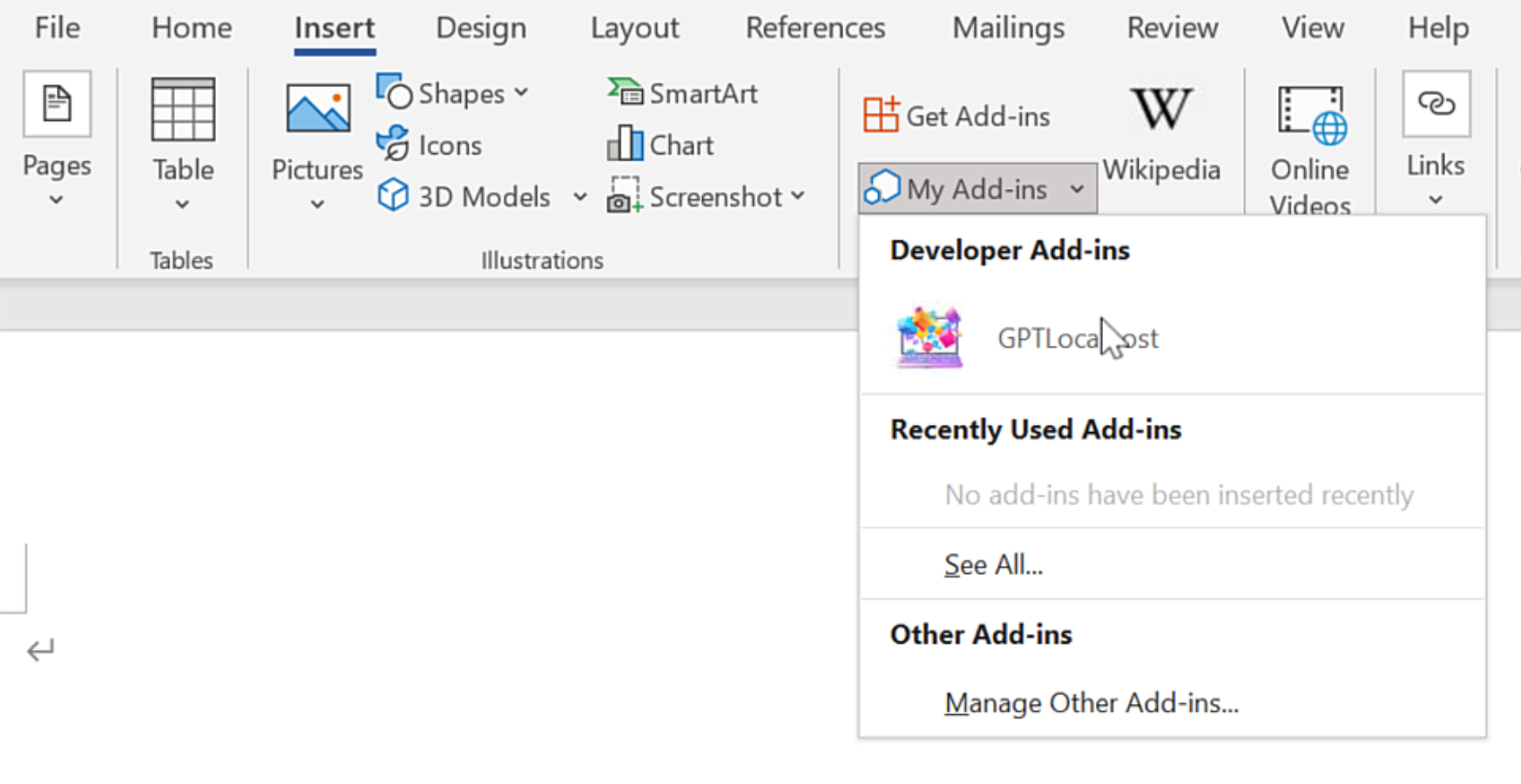
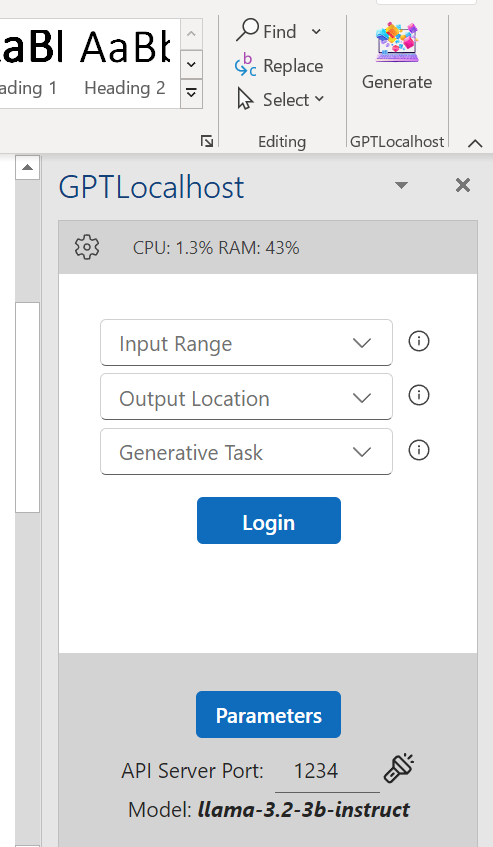
Install GPTLocalhost Add-in as a local Word Add-in if you use Windows.

  • This manual step is required for any local Word Add-ins, according to Microsoft.
  • On Windows, “net share” is required for Microsoft Word to access the local Word Add-in.
  • In Microsoft Word, please install GPTLocalhost Add-in under “Developer Add-ins” to make it run locally.

  • After installation, you can now connect your favorite LLM server in Microsoft Word directly and locally.

  • Stop the ChatGPT Leak: Call OpenAI APIs Directly in Microsoft Word

    In 2026, one of the greatest threats to AI privacy isn’t the LLM itself—it’s the browser you use to access it. For example, security researchers identified 16 malicious read more

  • The Hybrid Workflow: Using Groq API in Microsoft Word for Free

    The Free-Tier API is a Free Lunch—If You Use It Right In today’s aggressive AI market, industry leaders like Groq, OpenAI, Anthropic, Mistral, and Google are battling for read more

  • The Hybrid Workflow: Using Free Mistral API in Microsoft Word with Redaction

    The Free-Tier API: A Genuine “Free Lunch” In today’s hyper-competitive AI landscape, industry leaders like Mistral, Google, OpenAI, and Anthropic are battling for dominance by offering powerful free-tier read more

  • The Hybrid Workflow: Redact Before Using Gemini API in Microsoft Word for Free

    The Free-Tier API: A Genuine “Free Lunch” In today’s hyper-competitive AI market, giants like Google, OpenAI, and Anthropic are locked in a race for dominance. For the strategic read more

  • Private AI Writing Workflows: A Complete Guide for Microsoft Word

    Introduction In an era of data leaks and cloud-based monitoring, professional writers and researchers are moving their creative processes offline. By integrating local Large Language Models (LLMs) directly read more

  • The Local AI Infrastructure Guide: Building a Private Copilot Alternative

    The Shift to Local AI Infrastructure The era of “Cloud-Only” AI is evolving. For professionals in legal, medical, and corporate sectors, the focus has shifted from “what can read more

  • The Hybrid AI Strategy: Optimizing Privacy, Cost, and Performance in Microsoft Word

    Executive Summary The rapid integration of AI into professional workflows has created a fundamental tension between operational productivity and data control. While cloud-based assistants like Microsoft Copilot offer read more

  • Beyond Microsoft 365 Copilot: Redact in Word and Use APIs for Total Privacy

    The Redact-First Solution: Securing PII in Word with GPTLocalhost As organizations rush to integrate AI into their daily workflows, Copilot privacy risks have become a major concern for read more

  • Local LLMs for Microsoft Word: Comparative Benchmarks and Model Performance Tests

    The landscape of document productivity has shifted. While cloud-based assistants were the first to arrive, the demand for privacy has made Local LLMs for Microsoft Word the best read more

  • Private AI for Word: Using GLM-4-32B-0414 or Gemma-3-27B-IT-QAT for Creative Writing?

    As professionals prioritize high-level security over cloud-based assistants, the shift toward deploying local LLMs directly on private hardware has become the definitive path to a true Microsoft Copilot read more

For more demos, please check our YouTube channel.


Installing GPTLocalhost

Use IBM Granite 4 for Contract Analysis

Seamless Model Switching

Register Your Device to Be Completely Offline

Apple Intelligence in Microsoft Word

Automatic Markdown Format Conversion

Empower Your Team on Your Intranet

Intranet solution: LocPilot


Using AnythingLLM in Microsoft Word

Using LM Studio in Microsoft Word

Using Transformer Lab in Microsoft Word

Using Msty for Multiple LLMs in Microsoft Word

Using Ollama in Microsoft Word

Using llama.cpp in Microsoft Word

Using LocalAI in Microsoft Word

Using KoboldCpp in Microsoft Word

Using Xinference in Microsoft Word

Using OpenLLM in Microsoft Word

Using LiteLLM in Microsoft Word

Using Microsoft Foundry Local for GPU and CPU


Technical Control: How GPTLocalhost Secures Your Data

Most AI tools for Word are “Cloud Add-ins,” which act as windows to a remote server. GPTLocalhost is built differently. We utilize a specific architecture designed for local development and private sideloading, ensuring your data remains entirely under your total control.

The Microsoft “Local-Only” Advantage

According to the official Microsoft Office Add-in specification, the platform allows for “Localhost” manifests. This unique technical feature was originally designed by Microsoft to let developers build and test Add-ins locally without ever deploying them to a public cloud or external server.

GPTLocalhost leverages this specific loophole to provide 100% data ownership. By running as a local Add-in that communicates exclusively with your own machine, we guarantee:

  • No External Endpoints: Your text is never sent to a third-party API or cloud processing center.

  • The “Development” Security Standard: We treat your daily workspace with the same isolation that engineers use for top-secret prototypes.

  • Complete Private Ownership: Because the Add-in exists and runs entirely on your local server, you maintain absolute authority over your intellectual property.

Why This Matters for Professionals

For legal, medical, and financial professionals, a “Privacy Policy” is just a promise—but a local manifest is architectural proof. By utilizing Microsoft’s own local-only specs, GPTLocalhost provides total control over your data, bypassing the cloud vulnerabilities that affect tools like Microsoft Copilot and ChatGPT.